
You can delete your Insteon Hub account at any time. Please note that when you delete your account you will no longer be able to use your Insteon app to control your Insteon devices and scenes. If you want to setup a new Insteon Hub account using the same Insteon Hub, you will need to factory reset your Hub and connected devices (switches, sensors, etc.) for proper operation.
i3 Keypad Setup

i3 Paddle Setup
Future Device Support Development Updates
How Sensors are Monitored in the Director app
i3 Outlet Setup
i3 Dial Setup

Sensor No Response - Troubleshooting Sensor Communication Issues
Missing Hub Account Access or Unable to Log In
Insteon Hub Connection Diagnostics
How to find the email address that is associated with your Insteon Hub
If you are unsure which email address is associated with your Insteon Hub, please follow these simple steps.
If you are unable to log into the app, contact us at support@insteon.com and include a photo of the bottom of your Hub. We will then provide you with the email associated with that Hub.
Using Insteon Director app
Step 1
Tap Settings.
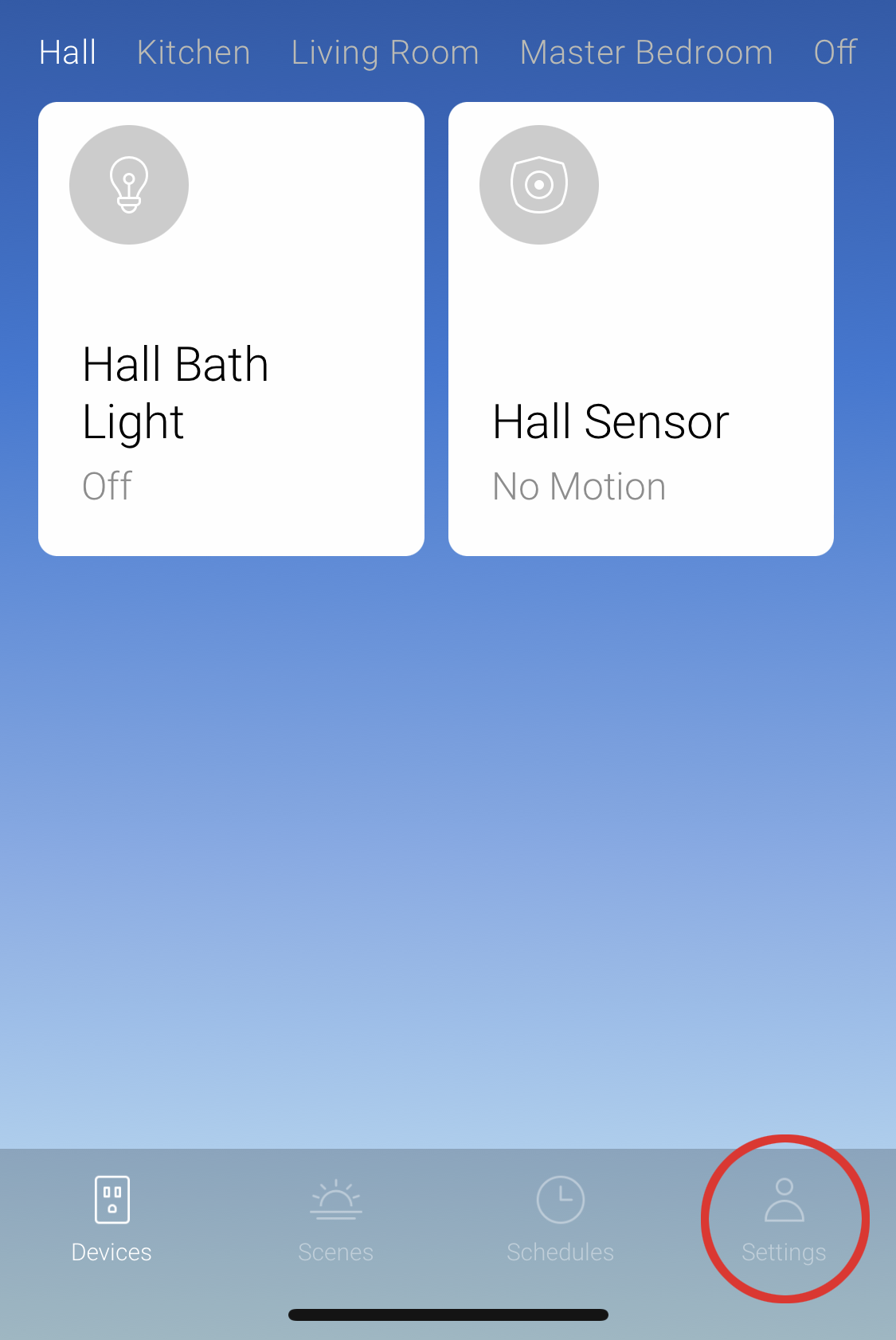
Step 2
Under Account is the email associated with your Insteon Hub.

What to expect if you don't purchase a subscription for your Insteon Hub account
Factory Resetting Insteon Devices
Download the Insteon App

Something Went Wrong While Configuring Your Insteon Hub

If you are attempting to add an Insteon Hub and receive an error stating “Something Went Wrong” or “Something’s Wrong” it is most likely because the Hub already registered with an Insteon Account. This could happen for a couple of reasons:
Your Hub is not connected to your router with an Ethernet cable or not powered on.
You purchased the Hub from somewhere other than Smarthome.com or received it as a second-hand device from a friend or family member
You have previously configured the Hub with an Insteon account and don’t have a record of your login information
Note: before continuing with the steps below, if you purchased the Hub to replace one that is no longer working AND you have Insteon devices already set up in your home, you may be entitled to a free warranty replacement. Learn more.
Confirm Account Already Associated with Insteon Hub
Make sure the Hub is connected directly to your router with an Ethernet cable and also plugged into power.
Confirm that the LED indicator located in the front of the Hub is on
Open up a web browser on a device that is connected to your network and visit the following page: https://connect.insteon.com/getinfo.asp
You should see an image on the page that looks similar to this:

If the Insteon Hub that you are trying to configure already has an account on it, it will show up with the “Configured Connect Account” as TRUE. If there is no account on the Hub it will display as FALSE.
In order to clear the account from the Hub, please send an email to support@insteon.com and include the following information
Your name
Your phone number
A request to delete the account associated with the Hub
Attach a photo of the bottom label of your Hub so that the Insteon ID is clearly visible
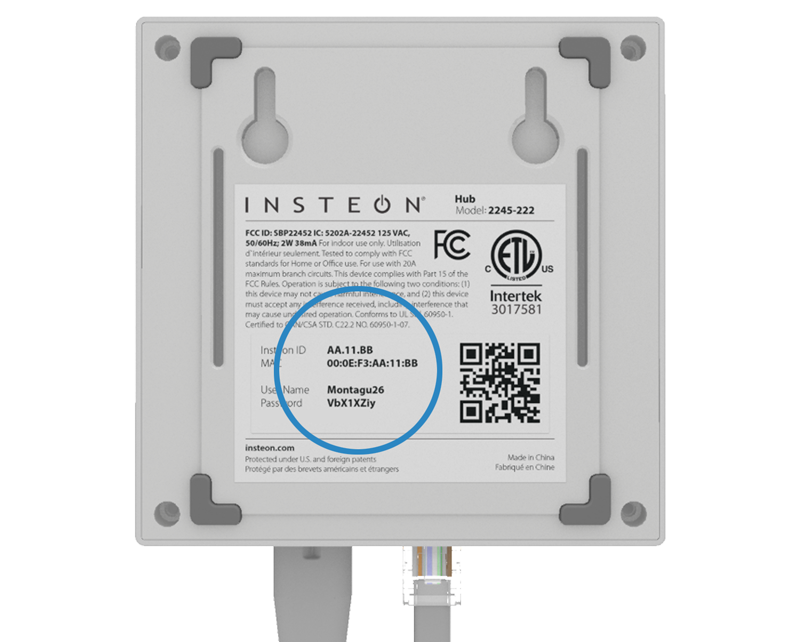
After we receive the email a member of our support team will be in touch within two business days to assist. Thank you for your patience.
Upgrading from Hub 1 (2242-222) to a Hub 2 (2245-222)
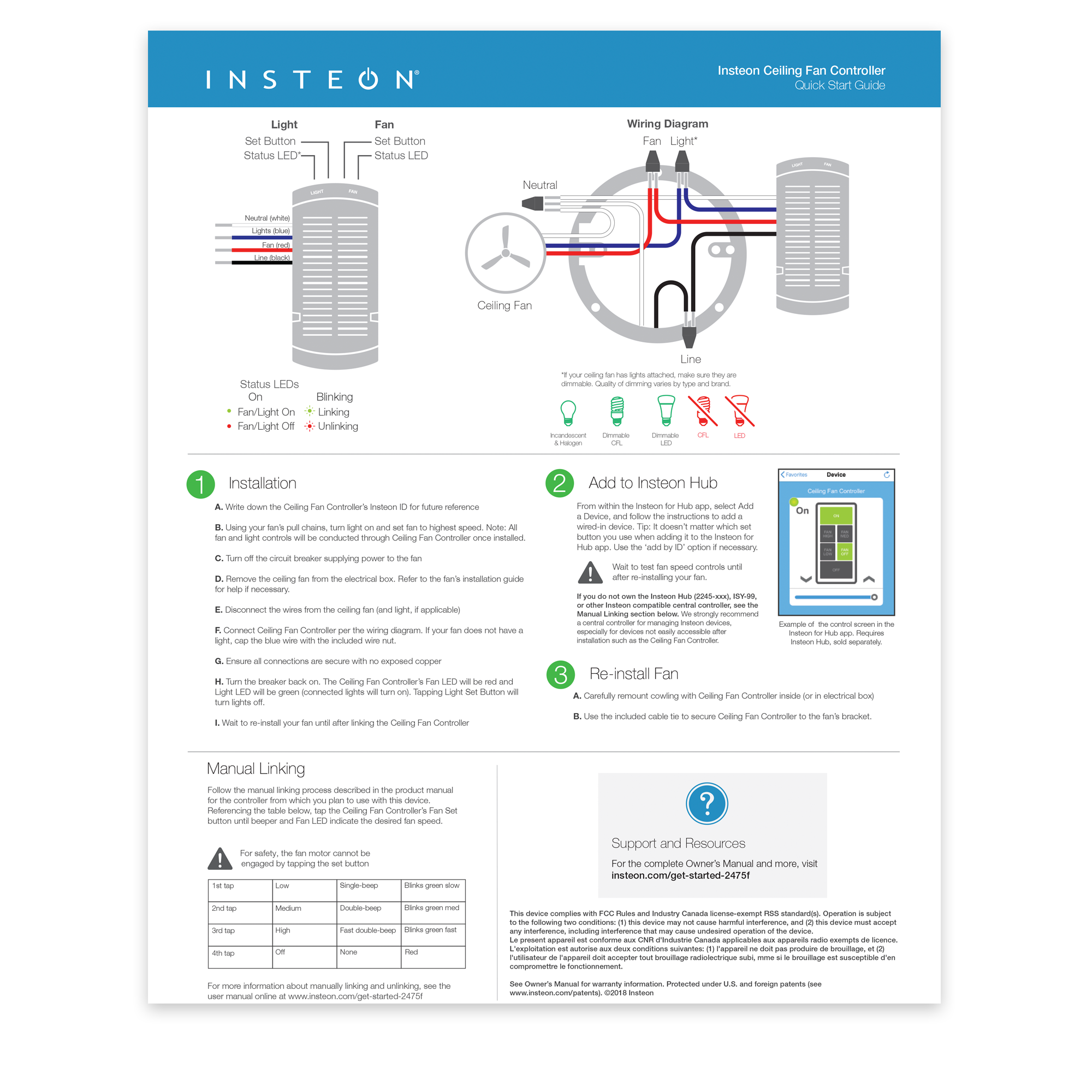
Ceiling Fan Controller Revision 3.0 June 2018 - Quick Start Guide
5 Reasons Insteon is Better than Wi-Fi for Your Smart Home

Insteon and AFCI (Arc-fault circuit interrupter) Circuit Breakers
Years ago, first generation AFCI breakers were manufactured with poor tolerances which caused false triggers from a variety of common appliances, including Insteon powerline signals. Later generations of AFCI breakers are better engineered for real-world electronics and do well at avoiding being falsely triggered. Today there are no issues with using AFCI breakers and our Insteon devices. However, if the installer fails to follow standard wiring rules associated with AFCI circuits, you may experience issues.
Follow these important rules when wiring devices on AFCI circuits:
- Any branch circuits that feed receptacles before switches should be pigtailed connections at the receptacle. This is where you wire the incoming wire and the wire from the panel side and the wire going down stream together with a third wire “the pigtail” that goes to the outlet. DO NOT USE THE OUTLET AS A SPLICE TO CONNECT THE INCOMING AND OUTGOING WIRES BY STABBING THEM INTO THE BACK OF THE OUTLET
- With AFCI breakers it is imperative that wall switches are connected to the same neutral that goes with that circuit. If switch box has two neutrals, only connect the switches neutral wire to the neutral from the circuit the switch is connected to. If an AFCI breaker wont reset after installing an Insteon switch it is because the wrong neutral was used. This can be a result of the electrician crossing neutrals in another box and not the fault of the wiring at the switch box itself.
- Loose or poor splices can cause a situation where an Insteon switch can trip an AFCI breaker. This is not the fault of the switch but the loose connection somewhere in the circuit.
If you are using AFCI breakers and experience false triggers with your Insteon system, please contact us at support@insteon.com and be sure to include the make and model of your AFCI breakers.
Control Insteon Devices from your Google Home
With Insteon Hub (2245-222) and Google Home, you can control Insteon-connected lights and appliances with your voice. The following article covers pairing your Insteon Hub account with the Google Home app.
For Android users with a Home device go to the Google Home support page. If you do not have a Google Home device installed make sure the install the Google Assistant app so that you get access the Google Assistant Home Control settings.
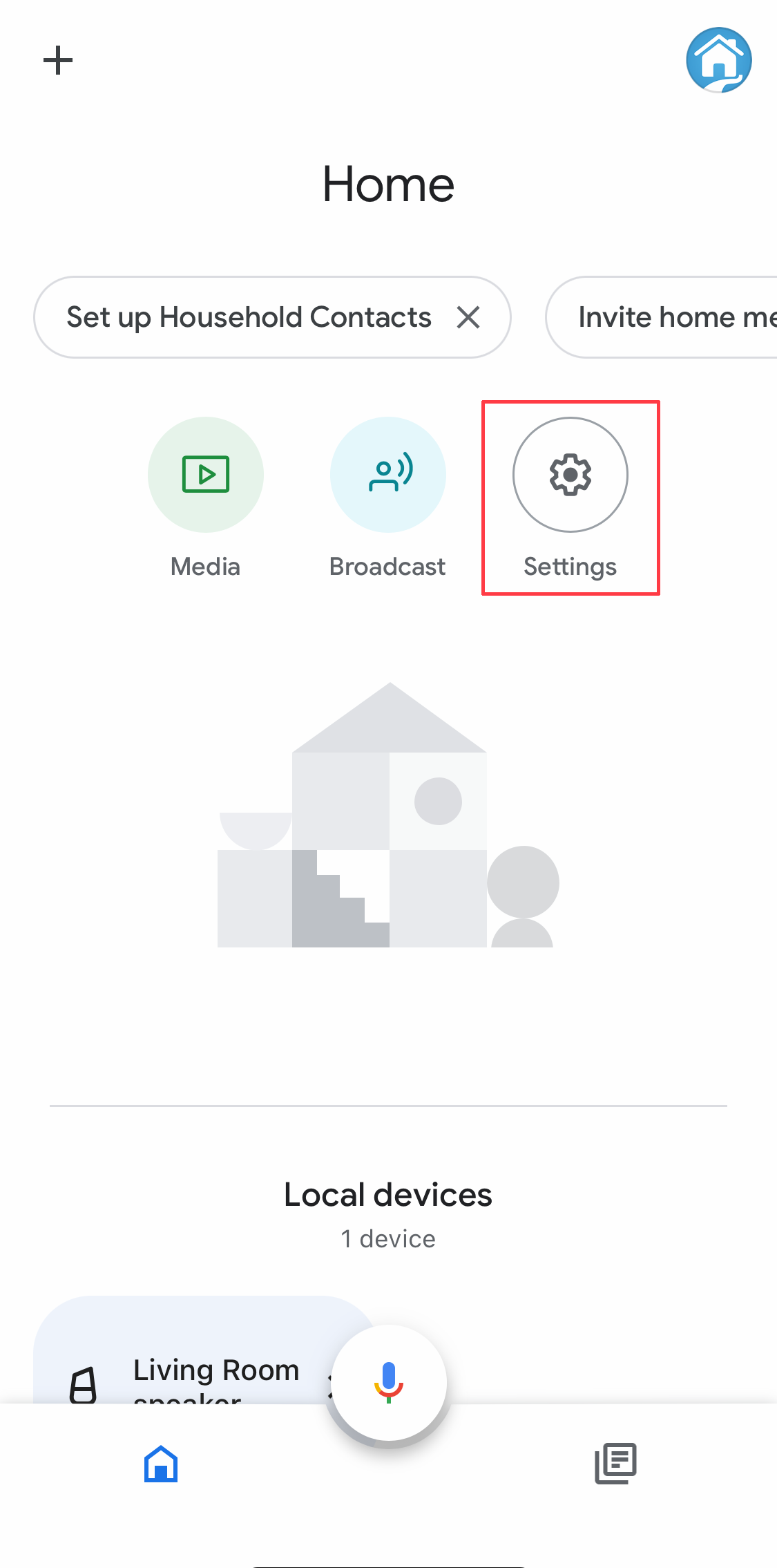
Step 1
Launch the Google Home App and tap the Settings gear icon
Step 2
Scroll all the way to the bottom and tap “Works with Google”

Step 3
Search for Insteon and select Insteon from under the Add new section

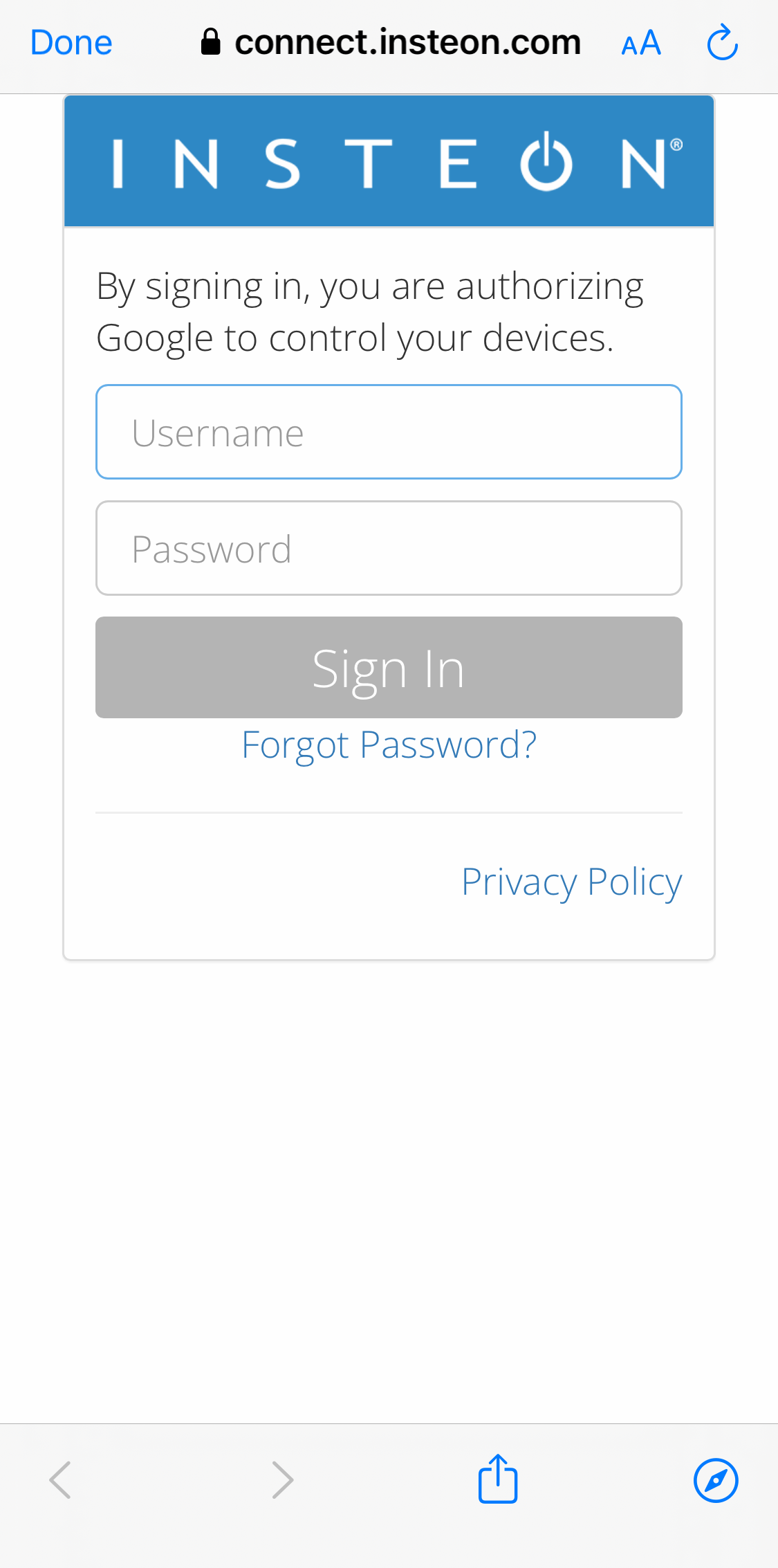
Step 4
Enter your username (email) and password associated with your Insteon Hub account then tap “Sign In”
Step 5
Select the home for your Insteon devices and then tap Next

Step 6
You will see a list of your devices*. Google Home will ask that you place each of the devices into rooms one at a time. To bypass these steps, tap the X (upper right).
*Scenes created in the Insteon mobile apps do not get shown with your devices list. You can still use your voice to activate any scenes you’ve created but to control it from the app, you will need to set up a routine within the Google Home app.
